
Trivia API for educators
Flashcards, lesson plans, Anki/Quizlet exports for classroom materials.
TL;DR
- Classroom-ready trivia and flashcards from a free questions database — over a million questions in English and Polish.
- No coding required for the no-code paths: download a Quizlet CSV, generate Anki flashcard decks, import to Google Forms.
- For tech-savvy teachers: a single HTML file you can open in any browser, paste into your Wordpress, or drop into Moodle / Canvas as a quiz activity.
- Free for teachers and small classrooms — 500 questions per day, no credit card, no trial countdown. Attribution-licensed (CC BY-SA 4.0), commercial use allowed including paid courses.
Why this exists
You teach a class, run a bootcamp, build edtech, or homeschool kids. You want quiz questions — for warm-ups, exit tickets, flashcards, language drills, family game night, midterm reviews. You do not want to write fifty quality questions by hand the night before class, and you do not want to trust ChatGPT with the answer key (you know how that goes when a student catches a wrong fact).
The options today are bad. Writing questions by hand takes hours and burns out fast. ChatGPT or Claude hallucinates with confidence — fine for inspiration, dangerous when a kid screenshots a wrong answer. Buying Kahoot pro / Quizizz pro is real money for what should be a free resource. Kahoot's question packs are often shallow and English-only. Library reference books are not searchable or filterable by topic.
QuizBase is a free questions database designed for educators and developers — over a million curated questions in English and Polish, per-question source attribution so you can show students where a fact came from. Three ways to use it: (1) no-code paths (download a Quizlet CSV, generate Anki .apkg, import to Google Forms), (2) a single-file HTML quiz you can paste anywhere, (3) a developer API if you are building edtech. All three are free for the small-classroom tier (500 requests per day, no card).
What you will build
A working quiz you can use in class today. The primary walkthrough is a one-file HTML quiz — you open it in any browser (Chrome, Safari, Firefox, even on a Chromebook), or you paste the HTML into your Wordpress / Squarespace / Webflow page, or you drop it into Moodle / Canvas as an HTML activity. No build step, no npm install, no server. The data comes from quizbase.runriva.com over the internet — works on school Wi-Fi.
For non-coding paths, the stack variants section below has step-by-step guides for: generating Anki .apkg decks (the world's most popular spaced-repetition flashcards), bulk-importing to Quizlet CSV, and pasting questions into Google Forms (the no-code path many teachers prefer). Each path takes 5-10 minutes of clicking, no programming.
For edtech app builders and LMS plugin developers, the REST API behind all of this is the same — `GET /api/v1/questions/random`. One endpoint, one header, JSON response. The dev API reference is at `/docs/api/questions`. The same key works for the HTML embed, the CSV download, and the REST API.
The stack — HTML + JavaScript single file, no install
The primary stack is **HTML + JavaScript in one file** because it is the most universal — any teacher who can save a `.txt` file can save a `.html` file. You open it in a browser, it works. You email it to yourself, it works. You upload it to your school's Wordpress, it works. You paste it into Moodle's HTML editor as a quiz activity, it works. No tooling, no terminal, no developer required.
If you are not comfortable touching HTML at all, the **no-code variants** below give you three paths: download a CSV, generate an Anki deck, paste questions into Google Forms. Each is a 5-10 minute clicking exercise, no programming. We recommend HTML/JS as the primary path because it is the most flexible (you control the look, language, scoring), but if no-code fits your workflow better, go straight there.
- HTML + JavaScript single file — open in any browser, paste into Wordpress / LMS / blog. No build step, no install, no server.
- Free tier — 500 quiz questions per day per teacher account. No credit card, no trial countdown. Designed for classroom-scale use.
- Multi-language — English and Polish today, with the same
?lang=parameter ready to expose more languages from the existing dataset based on demand. - Per-question attribution — every question carries
source,author,licenseso you can show students where a fact came from, and so commercial use (paid courses) is unambiguous. - Offline option — the BY-SA dump at
/datagives you JSON files you can save to disk for classrooms without reliable internet.
Build the classroom quiz step-by-step
Six steps, fifteen minutes. The first four get you a working quiz on your computer; the last two are optional (filter by category, add a language switcher). Each step is one paragraph plus the code or instructions you need. No prior coding experience required — if you can save a `.txt` file, you can do this.
Step 1
Get your free teacher account and keySign up at quizbase.runriva.com/pricing — pick the free tier (no card, 500 questions per day, every endpoint unlocked). After signup, the dashboard has a "Create key" button. Pick a **publishable key** (prefix `qb_pk_…`, dashboard scope label `publishable`) — these are designed for embeds in HTML and other client-side use. Copy it once (shown in plaintext exactly once for security), then set it aside for the next step.
You should have a key shaped like this qb_pk_<your_32_alphanumeric_publishable_key>Step 2
Create a quiz.html file on your computerOpen any text editor — TextEdit on Mac (use Format → Make Plain Text first), Notepad on Windows, gedit on Linux. Create a new file. Save it as `quiz.html` to your desktop. Make sure the file extension is `.html` and not `.html.txt` (Windows hides extensions by default; check Folder Options → View → uncheck "Hide extensions").
File location does not matter — desktop, Documents, anywhere works ~/Desktop/quiz.html ~/Documents/classroom/quiz.html C:\Users\teacher\Desktop\quiz.htmlStep 3
Paste the HTML and add your keyPaste the HTML below into your `quiz.html` file. Find the line that says `qb_pk_your_key_here` and replace it with the key you copied in step 1. Save the file. That is it — the quiz is now functional. Double-click `quiz.html` to open it in your default browser. You should see a question with four buttons.
quiz.html — paste this, replace the key, save <!doctype html> <html lang="en"> <head> <meta charset="utf-8" /> <title>Classroom Quiz</title> <style> body { font-family: system-ui, sans-serif; max-width: 640px; margin: 2rem auto; padding: 0 1rem; } button { display: block; width: 100%; padding: 0.8rem; margin: 0.5rem 0; font-size: 1rem; border: 1px solid #ccc; background: #f5f5f5; cursor: pointer; border-radius: 6px; } button:hover { background: #e8e8e8; } button:disabled { cursor: default; } .correct { background: #c8f7c5 !important; border-color: #4caf50; } .wrong { background: #f7c5c5 !important; border-color: #d32f2f; } </style> </head> <body> <h1 id="q">Loading…</h1> <div id="choices"></div> <p id="feedback"></p> <button id="next" style="margin-top: 1.5rem; background: #1976d2; color: white;">Next question</button> <script> const KEY = 'qb_pk_your_key_here'; const API = 'https://quizbase.runriva.com/api/v1/questions/random?lang=en&limit=1'; async function loadQuestion() { const r = await fetch(API, { headers: { 'X-API-Key': KEY } }); const { data } = await r.json(); const q = data[0]; const choices = [q.correctAnswer, ...q.incorrectAnswers].sort(() => Math.random() - 0.5); document.getElementById('q').textContent = q.text; document.getElementById('feedback').textContent = ''; const div = document.getElementById('choices'); div.innerHTML = ''; choices.forEach((c) => { const btn = document.createElement('button'); btn.textContent = c; btn.onclick = () => { document.querySelectorAll('#choices button').forEach((b) => (b.disabled = true)); const correct = c === q.correctAnswer; btn.classList.add(correct ? 'correct' : 'wrong'); document.getElementById('feedback').textContent = correct ? '✓ Correct!' : '✗ Wrong — the answer was: ' + q.correctAnswer; }; div.appendChild(btn); }); } document.getElementById('next').onclick = loadQuestion; loadQuestion(); </script> </body> </html>Step 4
Use it in your classroomYou have three ways to bring this into class. (1) **Open the file locally** — double-click `quiz.html` on the classroom computer, display in the projector. Works offline if you have the BY-SA dump in `assets/` (see § Bulk export for offline). (2) **Upload to your school website / Wordpress** — paste the HTML into a custom HTML block on a Wordpress page, or upload the file to your school server and link to it. (3) **Embed in LMS** — Moodle has a "Page" activity that accepts HTML; Canvas has "Pages → HTML editor"; both let you paste the whole `<body>` content as a quiz activity inside a lesson.
Three classroom paths 1. LOCAL FILE Double-click quiz.html → opens in browser → display on projector 2. WORDPRESS / SCHOOL WEBSITE Page editor → Custom HTML block → paste the whole <body> content 3. MOODLE / CANVAS / GOOGLE SITES Moodle: Activity → Page → HTML source → paste Canvas: Pages → New → HTML editor → paste Google Sites: Insert → Embed → Embed code → pasteStep 5
Filter by category and difficulty (optional)By default the quiz pulls random questions from any category. For a focused class — biology unit, history review, geography bee — filter to one category. Find the `API = '...'` line and add filter parameters. The category list is at `GET /api/v1/categories` — common slugs: `history`, `science-and-nature`, `geography`, `sports`, `animals`, `art`, `general-knowledge`. Difficulty levels: `trivial`, `easy`, `medium`, `hard`, `expert` — LLM-calibrated, so the level reflects how hard the actual choice is (not just the topic). For kids classrooms, combine `?difficulty=trivial` or `easy` with a safe-content category to avoid politics / adult-oriented topics; add `?quality=high` to skip ungraded records.
Replace the API line with filtered URL // History trivia, easy difficulty, English: const API = 'https://quizbase.runriva.com/api/v1/questions/random?category=history&difficulty=easy&lang=en&limit=1'; // Animals, easy, for younger kids: const API = 'https://quizbase.runriva.com/api/v1/questions/random?category=animals&difficulty=easy&lang=en&limit=1'; // Science review, medium, Polish-language class: const API = 'https://quizbase.runriva.com/api/v1/questions/random?category=science-and-nature&difficulty=medium&lang=pl&limit=1';Step 6
Add a language switcher for language classes (optional)Language teachers love this. The same canonical question can be served in multiple languages by stable id — today English and Polish are first-class, with more languages available on request. Replace the static API URL with a function that uses a language picker. The live, authoritative list with per-language question counts is at `/api/v1/languages`.
Replace the <script> block <div style="margin-bottom: 1rem;"> <label>Language: <select id="lang"> <option value="en">English</option> <option value="pl">Polski</option> </select> </label> </div> <!-- (rest of the body unchanged) --> <script> const KEY = 'qb_pk_your_key_here'; async function loadQuestion() { const lang = document.getElementById('lang').value; const API = 'https://quizbase.runriva.com/api/v1/questions/random?lang=' + lang + '&limit=1'; // (rest of loadQuestion unchanged) } document.getElementById('lang').onchange = loadQuestion; document.getElementById('next').onclick = loadQuestion; loadQuestion(); </script>
The complete classroom quiz — one HTML file
The full quiz with language picker, category filter, score tracker, and CC BY-SA attribution footer. Save as `quiz.html`, replace the API key, double-click to open in any browser. Or upload to your school Wordpress / LMS as an HTML page.
<!doctype html>
<html lang="en">
  <head>
    <meta charset="utf-8" />
    <title>Classroom Quiz — Powered by QuizBase</title>
    <style>
      body { font-family: system-ui, sans-serif; max-width: 720px; margin: 2rem auto; padding: 0 1rem; line-height: 1.5; }
      header { display: flex; gap: 1rem; align-items: center; flex-wrap: wrap; margin-bottom: 1.5rem; }
      h1 { font-size: 1.5rem; margin: 0; flex: 1; }
      select, button { font-size: 1rem; }
      .question { font-size: 1.3rem; font-weight: 600; margin: 1.5rem 0 1rem; }
      .choices button { display: block; width: 100%; padding: 0.9rem; margin: 0.5rem 0; font-size: 1rem; border: 1px solid #ccc; background: #f5f5f5; cursor: pointer; border-radius: 6px; text-align: left; }
      .choices button:hover { background: #e8e8e8; }
      .choices button:disabled { cursor: default; }
      .choices .correct { background: #c8f7c5 !important; border-color: #4caf50; }
      .choices .wrong { background: #f7c5c5 !important; border-color: #d32f2f; }
      .feedback { font-size: 1.1rem; margin: 1rem 0; }
      .next { margin-top: 1rem; padding: 0.75rem 1.5rem; background: #1976d2; color: white; border: 0; border-radius: 6px; cursor: pointer; font-size: 1rem; }
      .score { font-weight: 600; color: #555; }
      .attribution { font-size: 0.8rem; color: #777; margin-top: 2rem; border-top: 1px solid #eee; padding-top: 1rem; }
    </style>
  </head>
  <body>
    <header>
      <h1>Classroom Quiz</h1>
      <label>Lang:
        <select id="lang">
          <option value="en">English</option>
          <option value="pl">Polski</option>
        </select>
      </label>
      <label>Category:
        <select id="cat">
          <option value="">Any</option>
          <option value="history">History</option>
          <option value="science-and-nature">Science</option>
          <option value="geography">Geography</option>
          <option value="animals">Animals</option>
          <option value="sports">Sports</option>
        </select>
      </label>
      <span class="score" id="score">0 / 0</span>
    </header>
    <div class="question" id="q">Loading…</div>
    <div class="choices" id="choices"></div>
    <p class="feedback" id="feedback"></p>
    <button class="next" id="next">Next question</button>
    <p class="attribution">Questions from <a href="https://quizbase.runriva.com">QuizBase</a>, CC BY-SA 4.0. Per-question source available in API response.</p>
    <script>
      const KEY = 'qb_pk_your_key_here';
      let right = 0, total = 0;

      async function loadQuestion() {
        const lang = document.getElementById('lang').value;
        const cat = document.getElementById('cat').value;
        const params = new URLSearchParams({ lang, limit: '1' });
        if (cat) params.set('category', cat);
        const r = await fetch('https://quizbase.runriva.com/api/v1/questions/random?' + params, {
          headers: { 'X-API-Key': KEY }
        });
        const { data } = await r.json();
        const q = data[0];
        const choices = [q.correctAnswer, ...q.incorrectAnswers].sort(() => Math.random() - 0.5);
        document.getElementById('q').textContent = q.text;
        document.getElementById('feedback').textContent = '';
        const div = document.getElementById('choices');
        div.innerHTML = '';
        choices.forEach((c) => {
          const btn = document.createElement('button');
          btn.textContent = c;
          btn.onclick = () => {
            document.querySelectorAll('.choices button').forEach((b) => (b.disabled = true));
            const correct = c === q.correctAnswer;
            btn.classList.add(correct ? 'correct' : 'wrong');
            document.getElementById('feedback').textContent = correct
              ? '✓ Correct!'
              : '✗ Wrong — the answer was: ' + q.correctAnswer;
            total++;
            if (correct) right++;
            document.getElementById('score').textContent = right + ' / ' + total;
          };
          div.appendChild(btn);
        });
      }
      document.getElementById('lang').onchange = loadQuestion;
      document.getElementById('cat').onchange = loadQuestion;
      document.getElementById('next').onclick = loadQuestion;
      loadQuestion();
    </script>
  </body>
</html>
Get your free teacher key at /pricing — no credit card.
Let the AI help — ChatGPT, Cursor, Copilot
You do not have to write the code yourself. Three prompts below — one for ChatGPT or Claude.ai (lesson planning, no code), one for Cursor (custom HTML), one for GitHub Copilot (teach-while-you-build). Each is self-contained: paste, fill in your subject and age group, get a tailored result.
ChatGPT / Claude.ai (lesson planning, no code)
Even if you do not write code, you can paste this prompt into ChatGPT or Claude.ai (free or Pro tier) and get back: which categories fit your subject, sample lesson plans, age-appropriate filter configurations, and a parent-friendly description of where the questions come from. The AI reads our docs at /llms-full.txt before brainstorming.
How to use: Open ChatGPT or Claude.ai → paste the prompt below → fill in your subject and age group → press Enter.
I am a teacher and I want to use QuizBase as the question pool for my classroom quizzes.

QuizBase is at https://quizbase.runriva.com. Free tier (500 questions per day, no credit card) at /pricing.

Their full docs (every category, every parameter, every language) live as a single document at:
  https://quizbase.runriva.com/llms-full.txt

I teach [TELL THE AI YOUR SUBJECT — biology / history / Spanish / 4th grade / etc.] for [TELL THE AI THE AGE GROUP — middle school / high school / adult learners / etc.].

Read the docs and brainstorm with me. Specifically:

1. Which categories and filters would work best for my subject and age group? Show me actual API URLs I could put in the HTML quiz from /use-cases/educators.
2. Suggest five lesson plans built around the quiz — bell ringer, exit ticket, midterm review, language drill, vocabulary game.
3. Recommend a safe-for-classroom configuration: which categories to AVOID for my age group, which difficulty to start with.
4. Help me write a parent-friendly description of where the questions come from (attribution, license, content moderation), so I can include it in a syllabus email.
Cursor (for tech-friendly teachers building a custom embed)
If you are comfortable with HTML and want a custom design that matches your school's branding, Cursor will write the whole quiz.html for you in under two minutes. Open a folder, hit Cmd+I (Ctrl+I), paste the prompt, accept the edit, save the file.
How to use: Open a folder in Cursor → Cmd+I (Ctrl+I) → paste prompt → Enter → review the proposed edit → Accept → save as quiz.html.
I want to build a classroom quiz tool using the QuizBase API.

Stack: Single HTML file (no build step), vanilla JavaScript, no frameworks. Teachers will paste it into a Wordpress page or Moodle activity.

API call:
  GET https://quizbase.runriva.com/api/v1/questions/random?category=<slug>&difficulty=easy&lang=en&limit=1
  Header: X-API-Key: <publishable key, prefix qb_pk_>

Response shape:
{
  "data": [{
    "id": "uuid",
    "text": "What is...?",
    "correctAnswer": "Answer",
    "incorrectAnswers": ["Wrong 1", "Wrong 2", "Wrong 3"]
  }]
}

Requirements:
1. Single HTML file — no npm, no build, no server.
2. Dropdown for category (history / science-and-nature / geography / animals / sports) and language (en / pl — the languages QuizBase currently supports).
3. Difficulty defaults to easy (kid-safe).
4. Score tracker (correct / total).
5. Big readable buttons for classroom projector use (font-size 1rem+, full-width, padding 0.9rem).
6. Per-question attribution footer (link to quizbase.runriva.com, mention CC BY-SA 4.0).
7. Mobile-friendly so kids can answer on their phones.

Output: one quiz.html file with inline CSS and inline JavaScript. No external dependencies.
GitHub Copilot (comment-driven for teachers learning to code)
Copilot is comment-driven — write a spec as a top-of-file comment, leave a skeleton, press Tab. Copilot fills in the JavaScript line by line. Best for teachers using coding club time to learn alongside students; you see each decision the AI makes.
How to use: Paste the comment block + skeleton below into a new quiz.html in VS Code with Copilot → place your cursor inside the empty body → press Tab → accept suggestions with Tab.
<!--
  Classroom quiz powered by QuizBase API.
  API: GET https://quizbase.runriva.com/api/v1/questions/random?lang=en&limit=1
  Auth: X-API-Key header (publishable key, prefix qb_pk_)
  Response: { data: [{ id, text, correctAnswer, incorrectAnswers: string[] }] }
  Requirements:
  - Single HTML file, vanilla JS, no build
  - Category and language dropdowns
  - Big buttons for classroom projector
  - Score tracker
  - CC BY-SA attribution footer
-->
<!doctype html>
<html lang="en">
  <head>
    <meta charset="utf-8" />
    <title>Classroom Quiz</title>
  </head>
  <body>
    <!-- Place cursor here and press Tab — Copilot will fill in -->
  </body>
</html>
MCP — almost never relevant for classroom use (skip if you are a teacher)
MCP (Model Context Protocol) is a developer-side wiring that connects AI assistants like Claude.ai to external data sources. Educators almost never need to think about it — the HTML quiz and no-code paths above cover virtually every classroom use case. The one exception is if you want a persistent Claude.ai Project that fetches QuizBase content on demand for you and your students.
- Educators almost never need MCP. The HTML quiz above and the no-code paths below cover ~98% of classroom use cases. MCP is for AI agent builders — Slack bots, Claude.ai Projects, ChatGPT Custom GPTs. If you want a daily trivia Project in Claude.ai that you and your students can use together, see the AI Agent Builders page.
Claude.ai Project — daily classroom trivia (the one MCP path worth knowing for teachers)
This is the rare case where MCP is friendly to teachers — you wire QuizBase to a Claude.ai Project once, save the configuration, and from then on you and your students can ask Claude for a quick quiz at any time without you re-prompting the dataset. Setup is through Settings → Connectors → Add custom connector (UI, no JSON file). Full walkthrough on the AI Agent Builders page.
Name:    QuizBase
URL:     https://quizbase.runriva.com/mcp
Auth:    Bearer token
Token:   qb_pk_your_key_here
Try it: In a Claude.ai Project: "Give me five middle-school-friendly biology questions for tomorrow's exit ticket. Easy difficulty. Skip anything controversial. Format as a printable handout." Claude calls quizbase_random with your filters and produces the worksheet.
Or: ask your AI to plan lessons for you
Your AI has good ideas for how to use QuizBase in your classroom — it has read more pedagogy than you have time to. The full documentation lives as a single document at `https://quizbase.runriva.com/llms-full.txt` (one fetch, no scraping). Paste the prompt below into ChatGPT, Claude.ai, or Gemini. It will read our docs, ask about your subject and age group, then suggest filter configurations and lesson activities customized to your class.
I am a teacher and I want to use QuizBase as the question pool for my classroom.

QuizBase is at https://quizbase.runriva.com. Free tier (500 questions per day, no credit card).

Their full documentation (every category, every language, every parameter) is one fetchable document:
  https://quizbase.runriva.com/llms-full.txt

I teach [TELL THE AI YOUR SUBJECT AND AGE GROUP — e.g. 6th grade science, AP US History, adult ESL].

Read the docs and brainstorm with me:

1. Which categories and filters would best serve my class? Give me specific URLs I can paste into an HTML quiz.
2. Suggest five lesson activities that use the quiz — warm-up, exit ticket, language drill, midterm review, group competition.
3. Help me identify safe-for-classroom configurations for my age group: which categories to avoid, which difficulty to start with, content moderation considerations.
4. Recommend a no-code path versus a tech path: would I be better off generating Anki flashcards, importing a Quizlet CSV, embedding the HTML quiz, or using Google Forms? Match the recommendation to my comfort level (which you can ask me about).
This is the design intent: open data, open docs, and AI that helps you adapt to your students rather than forcing you to adapt to a tool. If you build something — a lesson plan, a worksheet template, a school-wide trivia tradition — tell us. The /about page has contact details; we showcase educator stories.
See it ship
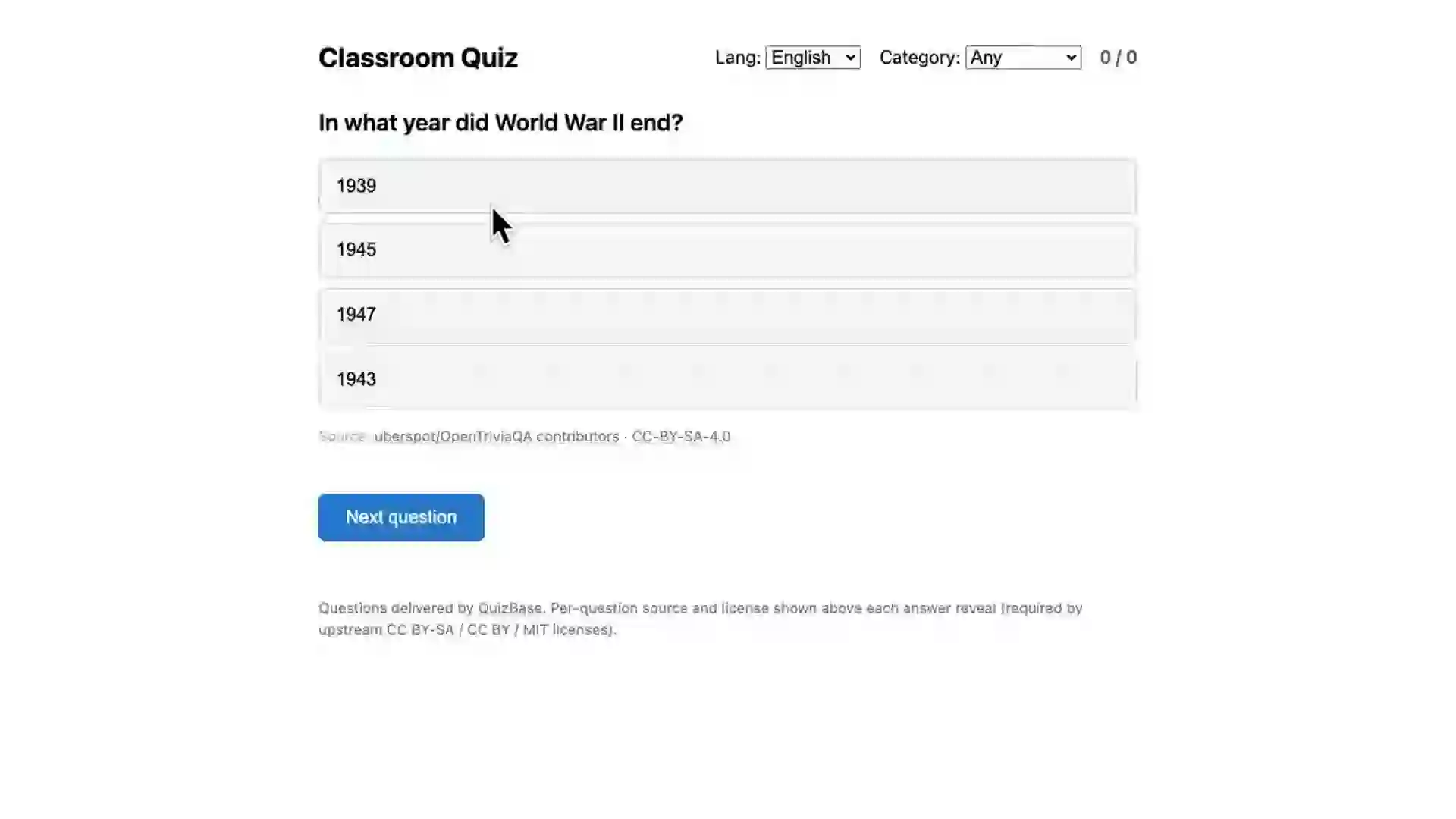
No-code paths — Anki, Quizlet, Google Forms
The HTML embed is the primary path because it is the most flexible. If you prefer clicking over editing HTML, the three no-code paths below cover the same ground with familiar tools. Pick the one that matches your existing classroom workflow.
Anki .apkg flashcards (Python + genanki)
When to use: You want spaced-repetition flashcards your students can study at home. Anki is the gold standard for serious study (med students, law students, language learners), the .apkg format is a single file students download once, and `genanki` is a Python library that builds .apkg from any data source. ~30 lines of Python to convert a QuizBase category into an Anki deck.
# pip install genanki requests
import genanki, requests, random

KEY = 'qb_pk_your_key_here'
URL = 'https://quizbase.runriva.com/api/v1/questions?category=history&lang=en&limit=50'

model = genanki.Model(
    random.randint(1 << 30, 1 << 31),
    'QuizBase Card',
    fields=[{'name': 'Question'}, {'name': 'Answer'}],
    templates=[{
        'name': 'Card 1',
        'qfmt': '{{Question}}',
        'afmt': '{{FrontSide}}<hr>{{Answer}}'
    }]
)

deck = genanki.Deck(
    random.randint(1 << 30, 1 << 31),
    'QuizBase History (50 questions)'
)

r = requests.get(URL, headers={'X-API-Key': KEY})
for q in r.json()['data']:
    deck.add_note(genanki.Note(model=model, fields=[q['text'], q['correctAnswer']]))

genanki.Package(deck).write_to_file('history-50.apkg')
print('Wrote history-50.apkg — share with students.')
Quizlet bulk import (CSV — no code beyond a copy/paste)
When to use: You want a Quizlet study set for your class — flashcards, match game, test mode, gravity, learn mode. Quizlet supports tab-separated bulk import: paste two columns (term + definition) and it creates the set. The script below produces a TSV you paste into Quizlet's import dialog.
Question text<TAB>Answer text
What is the capital of France?<TAB>Paris
Who painted the Mona Lisa?<TAB>Leonardo da Vinci
What is the chemical symbol for water?<TAB>H2O
(50 more rows fetched from QuizBase /api/v1/questions, see Python gen script below)
Google Forms (the no-code path — clicking only)
When to use: You have never written code and prefer clicking through familiar tools. Google Forms supports multiple-choice quizzes with auto-grading, point values, and feedback per choice. You manually copy 10-20 questions from the QuizBase HTML quiz (or the API response if you can read JSON) into Google Forms. ~15 minutes for a class quiz, but the form auto-grades and Google Classroom integration is seamless.
1. Open the HTML quiz from this page on your screen
2. Open Google Forms → Blank quiz template
3. For each QuizBase question:
   a. Add a multiple-choice question to the form
   b. Type/paste the question text from the HTML quiz
   c. Add the four answer choices (correct + 3 incorrect)
   d. In "Answer key" mode, mark the correct choice and assign 1 point
4. Settings → "Make this a quiz" → enable auto-grading
5. Share with students via link or assign through Google Classroom
6. Responses auto-grade, you see the score breakdown per student
Pitfalls — things that come up in real classrooms
Six issues that teachers actually run into, with the actual fix for each.
My school filters block "untrusted" websites — will quizbase.runriva.com get through?
Most school filters allow HTTPS API requests to public domains. If your filter is restrictive, ask your IT admin to whitelist
quizbase.runriva.com— share that the API is read-only educational content (HTTPS, no embedded ads, no tracking pixels, attribution-licensed). For air-gapped or paranoid school networks, use the offline BY-SA dump at/data— bundle a folder of JSON files on a USB drive, no internet required.Some questions are too hard / too easy / not age-appropriate for my class.
Three filters help. (1)
?difficulty=easyfilters to easier questions. (2)?category=animals,sports,geographyis generally safer for younger kids;?category=politics,celebritiesis more adult-oriented. (3)?topics_any=lets you filter to specific curated topics —?topics_any=american-history,world-historyfor history class,?topics_any=cellular-biology,human-anatomyfor biology. Browse topics at/api/v1/topics.My students are submitting answers from outside class — they're 'cheating' by Googling.
For high-stakes assessment, do not use a public quiz tool — your school's LMS gradebook (Canvas, Moodle, PowerSchool) has proper test integrity features (lockdown browser, IP restrictions, time limits). The QuizBase HTML quiz is designed for **low-stakes practice and engagement** — bell ringers, exit tickets, game-show review. For those use cases, students Googling is not a problem; the goal is exposure and retention, not gating a grade.
The free tier is 500 questions per day — my school has 30 classes.
500 questions per day is per QuizBase **account**, not per teacher or per student. If you serve a school district, three options: (1) each teacher creates their own free-tier account (5 teachers × 500 = 2500/day, no card). (2) for air-gapped or filtered school networks, bundle the BY-SA dump (we publish it to satisfy upstream share-alike obligations) and serve from your school server — useful when network access itself is the constraint, not as a way to scale around the free tier. (3) upgrade to a paid tier (Indie at /pricing, 10,000 questions/day) for live-API district-wide with freshness, MCP, and SDK access — the recommended path for online-only districts.
I am not comfortable with HTML — which no-code path should I pick?
Match to your comfort: (1) **Google Forms** — most familiar to teachers, auto-grading, Classroom integration, but you manually paste questions (~15 min per quiz). (2) **Quizlet CSV import** — five-minute bulk import once you have a CSV, plus Quizlet's game modes. (3) **Anki .apkg** — for serious study, but requires a small Python script (5-10 lines, your tech-friendly colleague or a student aide can run it for you). Start with Google Forms; promote to Quizlet when you want game modes; promote to Anki when you have students who study seriously outside class.
My students are seeing the same questions repeatedly.
By default
GET /api/v1/questions/randompicks from the full pool — repeated calls eventually overlap. To force variety: (1) save question IDs after each session, exclude them from next-session calls via?exclude=id1,id2,...(up to 100 ids per request). (2) widen the filter — drop?category=and?difficulty=to maximize the pool. (3) useGET /api/v1/questionswith cursor pagination instead of random — you walk through the entire pool in order, never repeating. Pagination is heavier client-side state but eliminates the repetition complaint.
Frequently asked questions
- Is this safe for kids? COPPA / GDPR / FERPA compliance?
- QuizBase does not collect data on quiz-takers — there is no user account on the student side, no cookies tracking quiz takers, no analytics. The teacher (you) has an account with an email; that account is GDPR-compliant. The HTML quiz from this page runs entirely in the student's browser, the only data transmitted is the API request from the teacher's IP (or proxied through the school network). For FERPA in US K-12, this fits the model of "educational resource without student PII transmission". For categorically sensitive content (politics, adult-oriented entertainment), use the `?difficulty=easy` and category whitelist (`animals`, `sports`, `science-and-nature`, `geography`).
- Can I edit or correct questions if I find a mistake?
- The hosted dataset is read-only on the API side — every account sees the same questions. You can: (1) **report a problem** via the `/api/v1/report` endpoint or the dashboard 'Report' button — we triage reports and fix at the source. (2) **fork the dataset** — the BY-SA dump at `/data` is CC BY-SA 4.0 licensed, you can download it, edit your local copy, host your own version. (3) **inline-override** in your HTML — fetch from QuizBase, then check question IDs against a personal exclusion or replacement list before showing the student.
- How accurate are the translations? Can I use this for serious language teaching?
- Translations are machine-generated and curated — quality is good for trivia content (factual questions translate cleanly), less reliable for nuanced cultural or idiomatic content. We recommend: (1) **vocabulary and grammar drills** — translations are reliable for terms and short answers. (2) **factual content** (science, math, geography) — translations are reliable. (3) **cultural or literary trivia** — preview before using in class, native-speaker review recommended for high-stakes assessment. If you find a bad translation, use the report endpoint.
- Can I use this in a paid course (Udemy, paid Patreon, Skillshare)?
- Yes. The API has a commercial license per your subscription tier (the free tier allows commercial use up to 500 requests/day). The dataset itself is CC BY-SA 4.0 — Attribution-ShareAlike — which is **compatible with commercial use including paid courses** as long as you (a) credit QuizBase as the question source and (b) license any derivative material under the same CC BY-SA 4.0 terms. Most paid-course platforms accept this; if your platform requires exclusive content licensing, generate questions yourself or use a different source.
- Can I bulk-export for offline classroom use?
- Yes. The BY-SA dump at `/data` gives you JSON files (one per language per category) — we republish it from time to time to satisfy upstream share-alike. Download the slice you need, store on a USB drive or your school server, your HTML quiz can read from those JSON files instead of the live API. Useful for: classrooms with unreliable Wi-Fi, computer labs with strict outbound network filters, schools with paranoid IT departments. The dump is roughly 200 MB full — a single language slice is 10-30 MB.
- How do I make the quiz work on student phones / Chromebooks / iPads?
- The HTML quiz is mobile-responsive out of the box — `max-width: 720px; margin: 2rem auto` makes it center on any screen, the buttons stack vertically on narrow phones. No special build required. Host the file on your school website / Wordpress / Google Sites, share the URL with students, they open it on whatever device they have. Tested on iOS Safari, Android Chrome, Chrome OS, Windows Edge.
- Does this work in Moodle? Canvas? Blackboard? Google Classroom?
- Yes to all four. **Moodle**: create a Page activity, switch to HTML source, paste the `<body>` content. **Canvas**: Pages → New → HTML editor button, paste. **Blackboard**: Items → Build content → Item → HTML source, paste. **Google Classroom**: create an assignment with an attached link to a Google Site or Wordpress page hosting the HTML. All four treat the embed as a standalone activity students access during their lesson.
- Is there a Moodle plugin / Canvas LTI / Quizlet integration?
- No dedicated plugin today. The HTML embed path covers most LMS use cases without one (paste once, works forever). If you would find a proper LMS plugin valuable, email us via the /about page — schools-side demand drives what we build next. For Quizlet, the CSV import path is friction-light enough that a dedicated integration has not been requested.
- How do I credit QuizBase in my classroom materials?
- Attribution can be as simple as: "Trivia questions from QuizBase (quizbase.runriva.com), CC BY-SA 4.0." Place at the bottom of the worksheet, on a syllabus page, in your LMS course intro, or in the HTML quiz footer (the example complete quiz includes the attribution line). For Anki decks generated programmatically, add the attribution in the deck description field. The per-question API response also includes `attribution.source` (the upstream dataset like OpenTDB or OpenTriviaQA) — including these for high-precision compliance is appreciated but not required.
- Where do I get help if something breaks or I find a wrong question?
- Docs at quizbase.runriva.com/docs include the quickstart and full reference. For API or platform bugs, use the in-dashboard "Report a problem" button or email us via the /about page. For wrong content in a question (incorrect answer, bad translation, offensive text), use `POST /api/v1/report` or the dashboard Report button. Status page at /status if you suspect an outage. Average response time is under 48 hours during the week — we read every educator email personally because we are a small team and we know how much classroom prep time you do not have.
Ten classroom uses — pick one, try it next week
You have the quiz tool. Here are ten concrete classroom uses, each different enough to fit a different teaching style or grade level. Half of them require no prep beyond the initial HTML setup; the other half are weekend projects that pay off all year.
1. Daily exit-ticket quiz on the projector
Three questions on the projector during the last 90 seconds of class — students answer on a paper ticket, you read the score for the day at the start of tomorrow. Zero prep on your side after the initial HTML setup.
2. Anki shared deck for your students Article →
Generate an Anki .apkg deck for a unit (history, biology, vocabulary), share with students for at-home spaced-repetition study. Anki is free, popular with med/law/grad students, and the shared-deck distribution is a simple file send.
3. Quizlet bulk import — class set in five minutes
Download a CSV of questions in your category, paste into Quizlet's import feature, you have a class set in five minutes. Quizlet's gamification (match, gravity, test mode) takes over from there.
4. Language learning rotation — same question, two languages
Run the quiz in English first, then Polish — same question pool. Students see how 'animals' vocabulary translates across languages without you preparing parallel content.
5. Friday game-show competition (team mode)
Split the class into teams, project the quiz, alternate teams answering. Winning team gets a prize (homework pass, extra credit, doughnuts). Builds engagement and review without extra prep.
6. LMS quiz module — Moodle or Canvas activity Article →
Paste the HTML into a Moodle "Page" activity or a Canvas page (HTML editor). Students access through your LMS, score is on their device for self-review. Use as ungraded practice between formal assessments.
7. Bell-ringer warm-up — one question at the start of class
One question on the board as students walk in. They write the answer on a notecard, you collect, you reveal at the end. Mini-routine that takes two minutes and signals "class starts now".
8. Substitute teacher emergency lesson plan
A self-contained `quiz.html` lives on a USB drive in the sub plans folder. If you have an unexpected absence, the substitute opens the file on the projector and the kids have a productive, content-aligned lesson for the period.
9. Parent-night demo activity
At parent-teacher night, parents take the quiz on iPads in your room. Conversation starter: 'here is what your kid is learning, here is a trivia question from that unit, try to beat their score.' Memorable, low-effort.
10. After-school trivia club — weekly competition with leaderboard Article →
Run a weekly after-school trivia club with rotating categories. Students sign up as teams, you track the leaderboard in a shared Google Sheet. Low setup cost, high student engagement, builds a school-spirit ritual. The Discord variant — pair this with the Slack/Discord bot tutorial for an automated leaderboard.
11. Roblox classroom — virtual field-trip trivia Article →
Build a Roblox Studio experience where students stand on numbered platforms to vote on trivia questions. Teacher controls advance from a moderator seat, fastest-correct-team scores. Roblox Education catalogue accepts these for free discovery. The HttpService API does the heavy lifting.
Ready for next week's lesson?
Free for small classrooms, no credit card. 500 API requests per day per teacher account (English and Polish), commercial use allowed including paid courses.
What to do next
You have a working classroom quiz. Here is where to go from here — each link is a concrete next step, not a vague "explore our docs".
- Download the offline BY-SA question dump →
JSON files per language per category, refreshed from time to time as the dataset is updated. Save to USB drive or school server for classrooms without reliable internet. CC BY-SA 4.0 licensed.
- Full API reference (when you outgrow the HTML embed) →
Every filter, every parameter. Useful when you want a custom-built quiz tool for your district or a Moodle / Canvas plugin.
- AI Agent Builders — for tech-savvy teachers building Claude.ai Projects →
If you want a persistent Claude.ai Project that you and your students can ask for daily quizzes, the AI Agent Builders page is the MCP-first guide.
- Pricing — free for small classrooms, paid for districts →
Free tier (500 questions/day) covers most teachers. Indie tier (10,000/day) for school-district use. Pro tier (100,000/day) for edtech vendors building on top of QuizBase.